


If your WordPress website takes more than three seconds to load, you’re losing money. It’s that simple. And if you’re a marketer or a brand owner running campaigns, driving paid traffic, or building an organic presence, then slow page performance for WordPress is one of the most expensive problems you can have.
WordPress powers roughly 43% of all websites on the internet. That speaks to the platform’s flexibility, ease of use, and massive ecosystem of themes and plugins. However, there is a trade-off. This versatility can become a performance liability without proper optimization.
This guide will walk you through exactly what page performance for WordPress really means, why you should care, and the specific, actionable tips you can take to speed things up.
Are you trying to improve your WordPress website but don’t know where to start? Let us help.
Why Page Performance for WordPress Should Be Your Marketing Priority
According to Google, the probability of a visitor bouncing increases by 32% once the page load time goes from one second to three seconds. Stretch that to 5 seconds, and the probability of a user bouncing goes up to 90%.
For eCommerce brands, the stakes are even higher. A site that loads in 1 second has a conversion rate roughly 2.5 times higher than one that loads in 5 seconds.
Beyond conversions, there’s also a loyalty factor at play. 79% of shoppers who experience poor site performance say they won’t return to buy again from that website. So you’re not only losing one sale, you’re losing the customer entirely.
If you’re spending money on Google Ads, social media campaigns, email marketing, or SEO content, every single dollar you invest can be considered wasted if the landing experience is slow.
This is why improving page performance for WordPress websites isn’t just a “side project.” It’s a revenue project that should be prioritized.
Understanding Core Web Vitals (Without the Jargon)
Google uses a set of three metrics called Core Web Vitals to evaluate how users are actually experiencing your website. These have been an official ranking factor since 2021, and they remain a permanent fixture of Google’s search algorithm. Here’s what they measure:
- Largest Contentful Paint (LCP) is all about loading speed. Specifically, it measures how long it takes for the biggest visible element on your page, generally the hero image or headline block, to fully appear. Google recommends an LCP of 2.5 seconds or less.
- Interaction to Next Paint (INP) measures responsiveness. When someone clicks a button or taps a menu, INP tracks how quickly the page visually responds. The target is under 200 milliseconds.
- Cumulative Layout Shift (CLS) measures visual stability. You’ve probably experienced this: you’re about to tap a link, the page suddenly shifts, and you end up clicking something else. Google wants this score to be under 0.1.
Now, Core Web Vitals are not the most powerful ranking factor; content relevance and authority still matter more. Google’s John Mueller has said that relevance is still far more important than Core Web Vitals scores alone.
When your content matches search intent, and your website has reasonable authority, good Core Web Vitals can make the difference between ranking at position three versus position eight.
The Biggest Performance Killers on WordPress
Before we discuss solutions, let’s first examine what is actually slowing down your website in the first place. Most page performance issues fall into these categories:
1. Too many plugins: WordPress has more than 60,000 free plugins in its directory, and it’s tempting to install dozens of them for testing. But each plugin can add extra CSS, JavaScript, and database queries to your pages.
Even plugins you’ve deactivated but not deleted can sometimes affect performance. A good rule of thumb is that if you can accomplish something without a plugin, do so. Audit your plugins every quarter and remove anything you’re not actively using.
2. Unoptimized images: This is one of the biggest and most common issues we see. A single high-quality, uncompressed image can be 3-5 MB, which is more than many entire web pages should be.
When visitors have to download these heavy files, everything slows down.
3. Cheap or overcrowded hosting: Your hosting environment is the foundation of your site’s speed. So if you’re on a $5 per month shared hosting plan with hundreds of other sites on the same server, you’re competing for resources. No number of plugins and image optimization can fully compensate for a slow server.
4. Heavy themes and page builders: Many popular WordPress themes are loaded with features you’ll never use, such as sliders, animations, dozens of font options, and a built-in page builder. All of that code has to be loaded, parsed, and rendered by the browser, even if the visitor doesn’t interact with it.
5. No caching: Without caching, every time someone visits your site, WordPress has to query the database, process PHP, and assemble the page from scratch. That process takes time and server resources. Caching stores a static version of the page and serves it instantly.
6. Render-blocking CSS and JavaScript: When a browser loads your page, certain CSS and JavaScript files can block the page from rendering until they’re fully downloaded and processed. If you have multiple render-blocking files, visitors will see a blank screen for longer than they should.
Actionable Strategies to Improve Page Performance for WordPress
1. Run a Baseline Performance Test
You can’t improve what you don’t measure. Start by testing your website with these free tools:
- Google PageSpeed Insights: This tool provides both lab and real-user data. It will show your Core Web Vitals scores and provide specific recommendations for improvement.
- GTmetrix: Provides a detailed waterfall chart showing exactly what loads, in what order, and how long each element takes.
- WebPageTest: Lets you test from different locations and connection speeds, which is very useful if you have an audience across multiple regions.
Test your homepage, your highest-traffic landing pages, and any pages where you’re running ads. Write down the numbers, then compare them after you’ve made changes.
2. Upgrade Your Hosting
This is the highest impact change most WordPress website owners can make. If your server response time (TTFB — Time to First Byte) is over 600 milliseconds, you’re starting the race last. Google recommends an ideal server response time of 200 milliseconds or less.
For most marketers and brand owners, providers such as Cloudways, SiteGround, WP Engine, or Kinsta handle server-level caching, automatic updates, security, and performance optimization by default.
Yes, they cost more than any shared hosting provider, but the performance difference is dramatic and well worth the price.
Think of it this way: if your website generates any meaningful revenue or leads, the hosting upgrade will pay for itself in improved conversions alone.
3. Install and Configure a Caching Plugin
Caching is one of the easiest ways to improve page performance for WordPress. A caching plugin creates static HTML versions of your pages, so the server doesn’t have to rebuild them from scratch for every visitor.
Caching can improve site loading speed by 20-50%.
The most popular options include WP Rocket, LiteSpeed Cache, and W3 Total Cache. At a minimum, enable page caching and browser caching. WP Rocket, for example, handles this with a few clicks. It also minifies CSS and JavaScript, defers non-critical scripts, and handles several other optimizations automatically. This makes it ideal for non-developers.
4. Optimize Your Images
Image optimization should be near the top of your priority list. Here is a quick and easy process for you to follow:
Resize before uploading: If your content area is 800 pixels wide, there’s no need to upload a 4000-pixel-wide image. Resize images to the maximum display size before uploading them.
Compress images: Use plugins such as ShortPixel, Imagify, or Smush. These tools compress images and often reduce file size by 60-80%, without any visible loss of quality. Most offer both lossy and lossless compression options.
Use next-gen formats: WebP and AVIF are modern image formats that deliver the same visual quality at significantly smaller file sizes than JPEG or PNG. Most image optimization plugins can automatically convert and serve images in WebP format to browsers that support it.
Enable lazy loading: Lazy loading means images below the fold (outside the visible screen area) don’t load until the visitor scrolls to them. WordPress has had basic lazy loading built in since version 5.5, but third-party performance plugins often give you more control over the implementation.
5. Reduce and Optimize Plugins
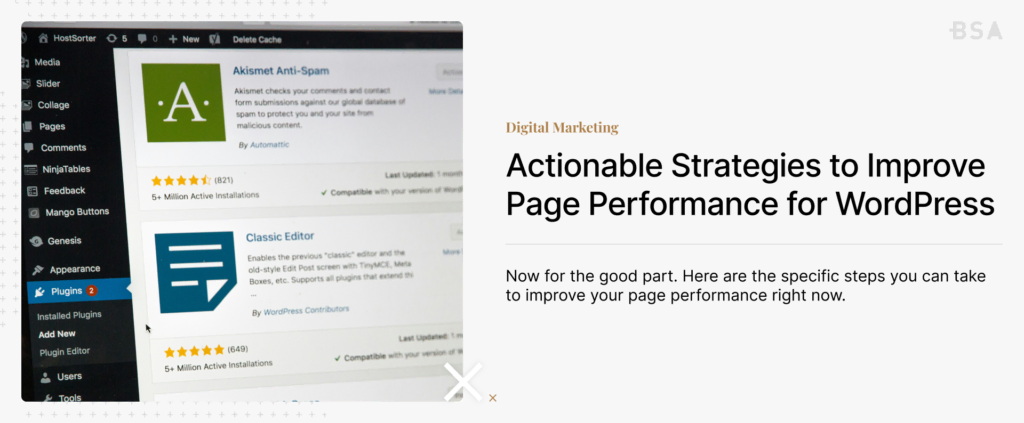
Go to your WordPress plugin list right now and ask yourself these three questions about each plugin: Do I still need this? Is there a lighter alternative? Could I achieve the same result with a code snippet instead?
Deactivate plugins one at a time and test your site speed after each one. You’ll generally find that one or two plugins are responsible for a disproportionate amount of the slowdown. The Query Monitor plugin (free) is helpful for identifying plugins that generate excessive database queries.
Try to keep your active plugin count as low as functionally possible. There is no single magic number that applies to every website. A well-optimized site with 30 plugins can outperform a poorly configured website with 10 plugins, but keeping unneeded plugins creates avoidable risk.
6. Choose a Lightweight Theme
Your theme is the foundation of your website. If it’s bloated, then everything you create on top of it suffers.
Themes like GeneratePress, Kadence, and Astra are built for performance and still offer plenty of design flexibility. They load minimal CSS and JavaScript, use clean code, and pair well with the WordPress block editor such as Gutenberg.
If you’re currently using a heavy theme with a built-in page builder, switching themes is a bigger project, but it can also be the most impactful long-term performance improvement you make. We recommend considering this during your next redesign cycle.
7. Use a Content Delivery Network (CDN)
A CDN distributes copies of your website’s static files (images, CSS, JavaScript) across servers around the world. When someone visits your website, they receive those files from the server closest to them, which reduces load times.
Cloudflare offers a free tier that provides CDN services along with integrated security features. Other popular CDN options include BunnyCDN, which is affordable, and KeyCDN.
If your audience is geographically spread out, such as a national brand or an eCommerce store shipping across the country, a CDN is almost mandatory, not optional.
8. Minimize Render-Blocking Resources
When your browser encounters a CSS or JavaScript file in the head of your HTML, it typically stops the page from rendering and processes that file. This is called render-blocking, and it’s one of the primary reasons pages feel slow even when the server responds quickly.
Addressing this generally involves two techniques. Deferring JavaScript tells the browser to download the script in the background and run it after the page has rendered. Additionally, removing unused CSS strips out stylesheet rules that aren’t needed on the current page.
Both WP Rocket and Perfmatters make this easy. WP Rocket has a “Delay JavaScript execution” feature and a “Remove Unused CSS” option that work well on most WordPress sites. Just be sure to test after enabling these features, as aggressive optimization can sometimes break functionality altogether.
9. Optimize Your Database
Over time, your WordPress database accumulates clutter such as post revisions, spam comments, transient options, orphaned metadata, and old draft posts. This bloat can slow down database queries.
WP-Optimize is a free plugin that lets you clean up your database with one click. It additionally removes revisions, drafts, spam comments, trash, and expired transients. You can also set it to auto-clean on a schedule.
A clean database leads to faster queries, which leads to faster page generation, which is particularly important for dynamic pages that can’t be fully cached.
10. Implement Preloading and Prefetching
These optimization techniques are slightly more complicated techniques, but they are easy to implement with the right plugin.
Preloading tells the browser to start fetching an important resource, such as a font or a hero image, as soon as possible, before it would normally discover it in the code. This technique is highly effective if you’re trying to optimize your LCP scores.
DNS prefetching resolves domain names or third-party resources (like Google Analytics, fonts, or ad scripts) in advance, so when those resources are needed, the DNS lookup is already done.
Most performance plugins include fields where you can add preload and prefetch directives without touching the code.
A Practical Priority Checklist
If you’re feeling overwhelmed by all of this, here’s the order we would do everything in based on impact and ease of implementation:
Week 1: Measure and plan. Run PageSpeed Insights and GTmetrix on your key pages. Document all of the scores. Identify the biggest issues flagged in the reports.
Week 2: Quick wins. Install a caching plugin and configure its basic settings. Next, use an image optimization tool to bulk-compress your existing media. Remove or replace unused plugins.
Week 3: Hosting and CDN. If your TTFB is slow, research and migrate to a managed WordPress host. Set up Cloudflare or another service.
Week 4: Fine-tuning. Defer JavaScript and remove unused CSS. Clean up your database. Add preload hints for critical resources. Re-test everything and compare with your baseline scores.
This isn’t a one-time project either. Page performance for WordPress is something you should try to monitor every single month, especially if you plan on adding new plugins, changing themes, or publishing content with new types of media.
How to Measure Success
After implementing these changes, go back to the same testing tools and measure again.
For LCP, your target is 2.5 seconds or under. For INP, aim for under 200 milliseconds. And for CLS, keep it below 0.1. As a general rule, your total page load time should be under 3 seconds.
Also, monitor your business metrics. Watch your bounce rate, average session duration, pages per session, and conversion rate over the following weeks. The data from Google Analytics and Search Console will tell you whether your performance improvements are actually translating into better engagement and rankings.
Get a Custom WordPress Website That Converts, Built by Blacksmith
After going through this article on how to increase page performance for WordPress websites, you might have noticed that to fully improve your website, it takes a lot more than 2 days’ worth of tweaks and fixes.
You need to be working on improving and maintaining your website every month. All while ensuring that you’re posting content and staying relevant. This is all time you could be using on other aspects of both your website and business. So now what?
That’s where we come in. Blacksmith is a Professional WordPress Development Company with a group of seasoned web developers ready to make your website the best it’s ever been.
Are you still unsure if working on your website is what you need to get more leads? Don’t worry. Schedule a call with us, and we’ll provide you with a complete website audit. This way, we can show you how your website is performing and how you compare to your main competitors.